

Clear, practical walkthroughs for students and instructors
Explore step-by-step help for practice sessions, AI feedback, and progress reporting. Built in a docs-first style so you can scan fast and act quickly.
MUICTTA Guides
Welcome to the MUICTTA help docs. These guides cover student workflows first, followed by instructor setup and quick fixes.
Student Guides
1. Getting Started
- Sign in and complete any consent or nickname steps if prompted.
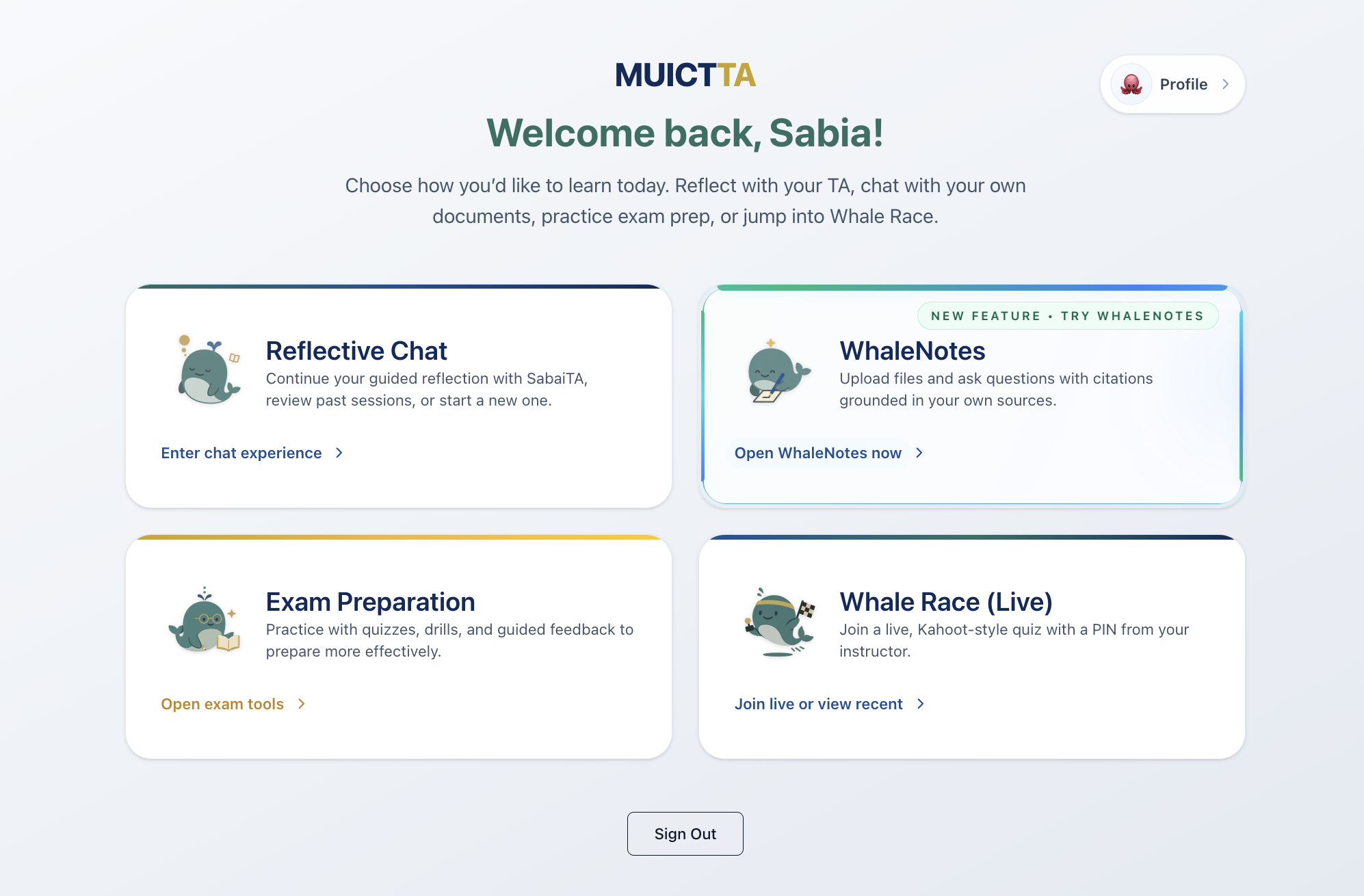
- From the Experience Hub, choose any feature you want to use (you can switch later): Reflection Chat needs a 6-character session code, WhaleNotes starts by creating a session and adding sources, Exam Preparation uses a 6-character access code, and WhaleRace uses a live game PIN.
- Return to the hub anytime to resume an existing session or try a different feature.
2. Exam-Prep
Exam-Prep is the guided practice feature. Use the subsections below to understand the full student flow.
2.1 Practice Session Flow
A typical Exam-Prep loop looks like this:
- Open Exam Preparation from the Experience Hub.
- Enter the 6-character access code to start a new session, or click an existing session in Your practice sessions to resume (sessions can be scheduled or have deadlines).
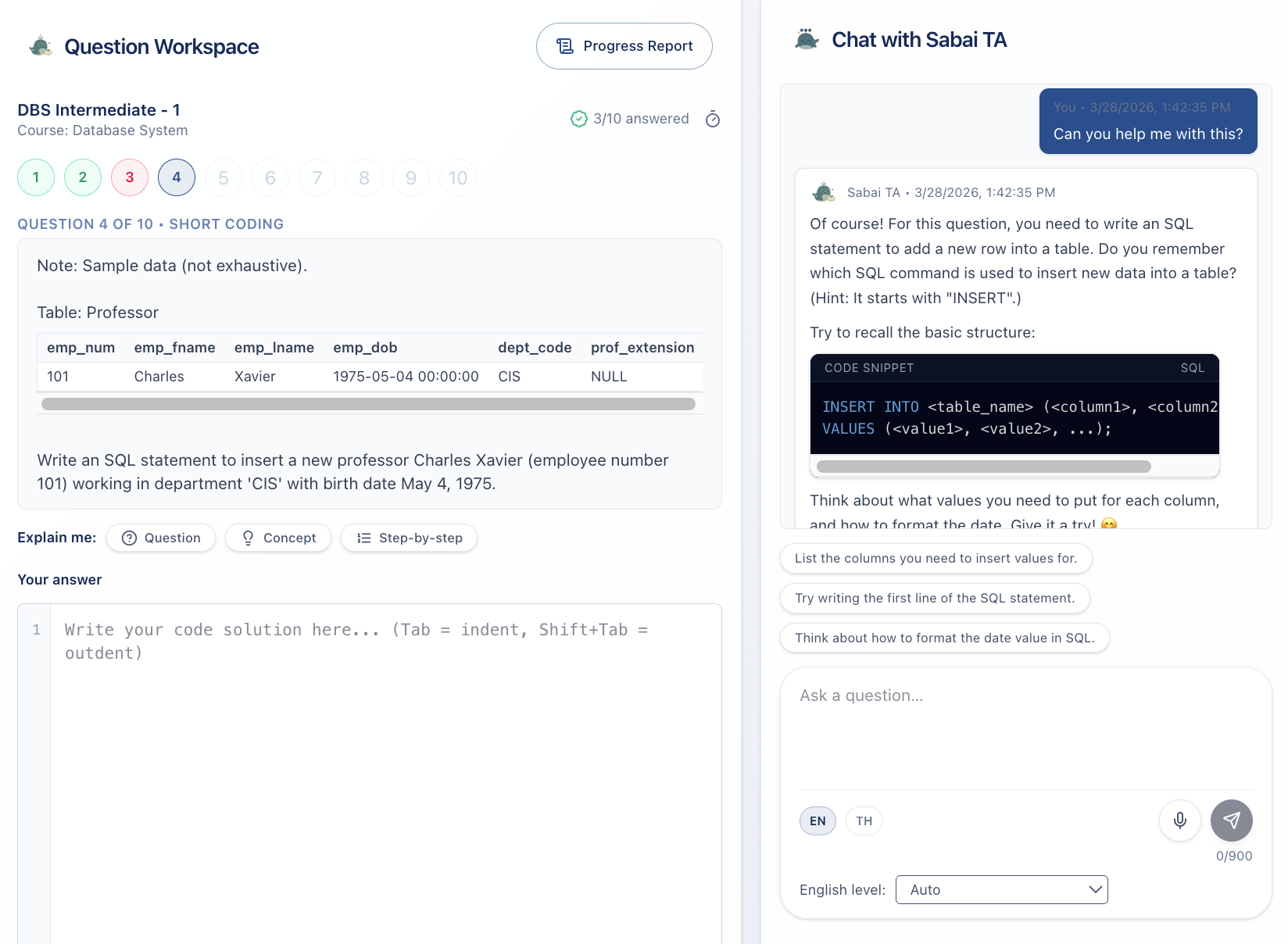
- Use the question list to move through the set. You must submit an answer to unlock the next question.
- For each question, read the prompt, optionally open hints, and use Explain me buttons to ask Sabai TA about the question, concept, or steps.
- Submit your answer to get feedback, then retry if needed while the context is fresh.
Why this matters: fast feedback and retries strengthen memory and reduce repeated errors later.
2.2 Answer Format and Submission
- Multiple choice and true/false questions require selecting an option before you can submit.
- Short/long questions use text input; code questions use the code editor.
- Always match the required format (spacing, case, symbols) when the prompt specifies it.
Common format pitfalls
| Issue | Example | Fix |
|---|---|---|
| Extra spaces | 3 4 | Use single spaces only |
| Wrong delimiter | 3,4 | Use the delimiter shown in the prompt |
| Case mismatch | TRUE | Match the expected case |
2.3 AI Feedback (What You Will See)
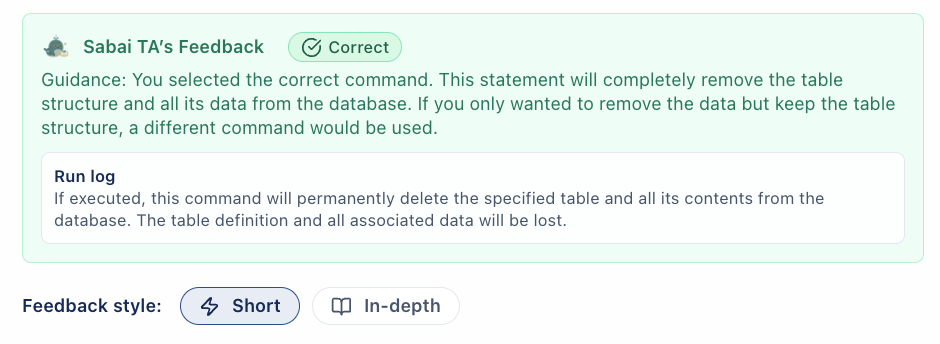
After each submission, Sabai TA’s Feedback appears below your answer. It typically includes:
- Error pinpoint: what is incorrect in your attempt.
- Reasoning: why the answer is wrong.
- Correct approach: the method to fix it.
- Correct/Warning badges when applicable.
You can switch Feedback style between Short and In-depth for different levels of detail.
How to use it well
- Read the explanation before retrying.
- Re-derive the solution in your own words.
- Retry immediately to lock in the correction.
2.4 AI Chat (When and How to Ask)
Use Chat with Sabai TA on the right when you are stuck, not when you want the final answer.
Good question patterns
- "Why is my approach incorrect?"
- "What is the next step from here?"
- "Can you explain the concept behind this question?"
Avoid
- "Give me the answer."
- Copying the entire question without context.
2.5 Progress Report (What It Means)
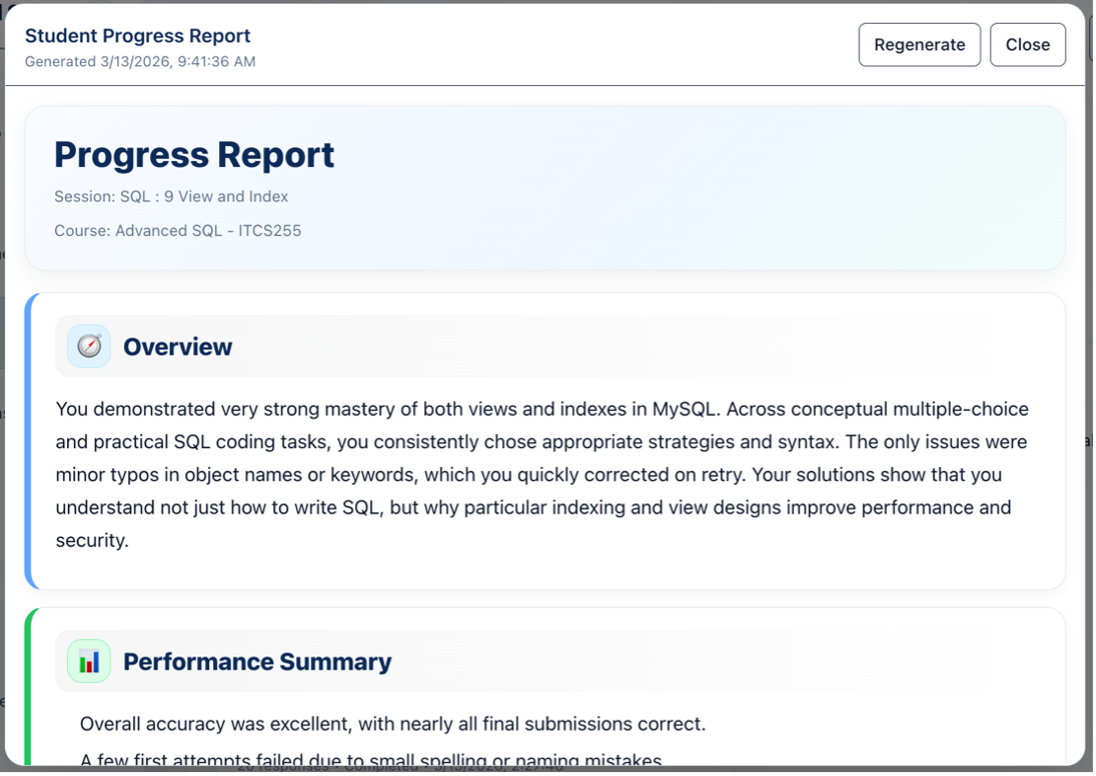
Use the Progress Report button in the Question Workspace to open your report (you will be prompted to finish or attempt the last question if it is still untouched). The report summarizes your learning signals:
- Weak topics: concepts with repeated errors.
- Trend view: accuracy or retry improvements over time.
- Practice coverage: how many questions you attempted.
How to use it
- Choose one weak topic for your next study block.
- Compare trend changes week to week.
- Use it to decide what to review, not what to skip.
2.6 Retry and Attempt Strategy
- Retry immediately after feedback.
- Watch the Attempts remaining indicator for each question (some sessions limit retries).
- If stuck after two retries, use AI Chat or hints, then move on and return later.
- Revisit difficult topics within 24-48 hours.
Recommended rhythm
| Step | Time |
|---|---|
| Attempt + feedback | 3-5 min |
| Immediate retry | 2-4 min |
| Short reflection note | 1 min |
2.7 Study Plan (Weekly Routine)
- Day 1: Focus on weak topics from the progress report.
- Day 3: Practice medium difficulty questions.
- Day 5: Review previous mistakes and reattempt.
Tip: short sessions (20-30 minutes) are more effective than long unfocused blocks.
2.8 Troubleshooting (Student)
| Issue | Why it happens | What to do |
|---|---|---|
| Answer rejected | Format mismatch | Check required format or example |
| Access code rejected | Code is not 6 characters or not assigned | Double-check the code and try again |
| Session not available | Start time not reached or session closed | Wait for the start time or contact your instructor |
| Next question disabled | Current question has no submitted answer | Submit at least one attempt to unlock the next question |
| Progress report missing | Last question not attempted | Answer or attempt the final question, then open the report |
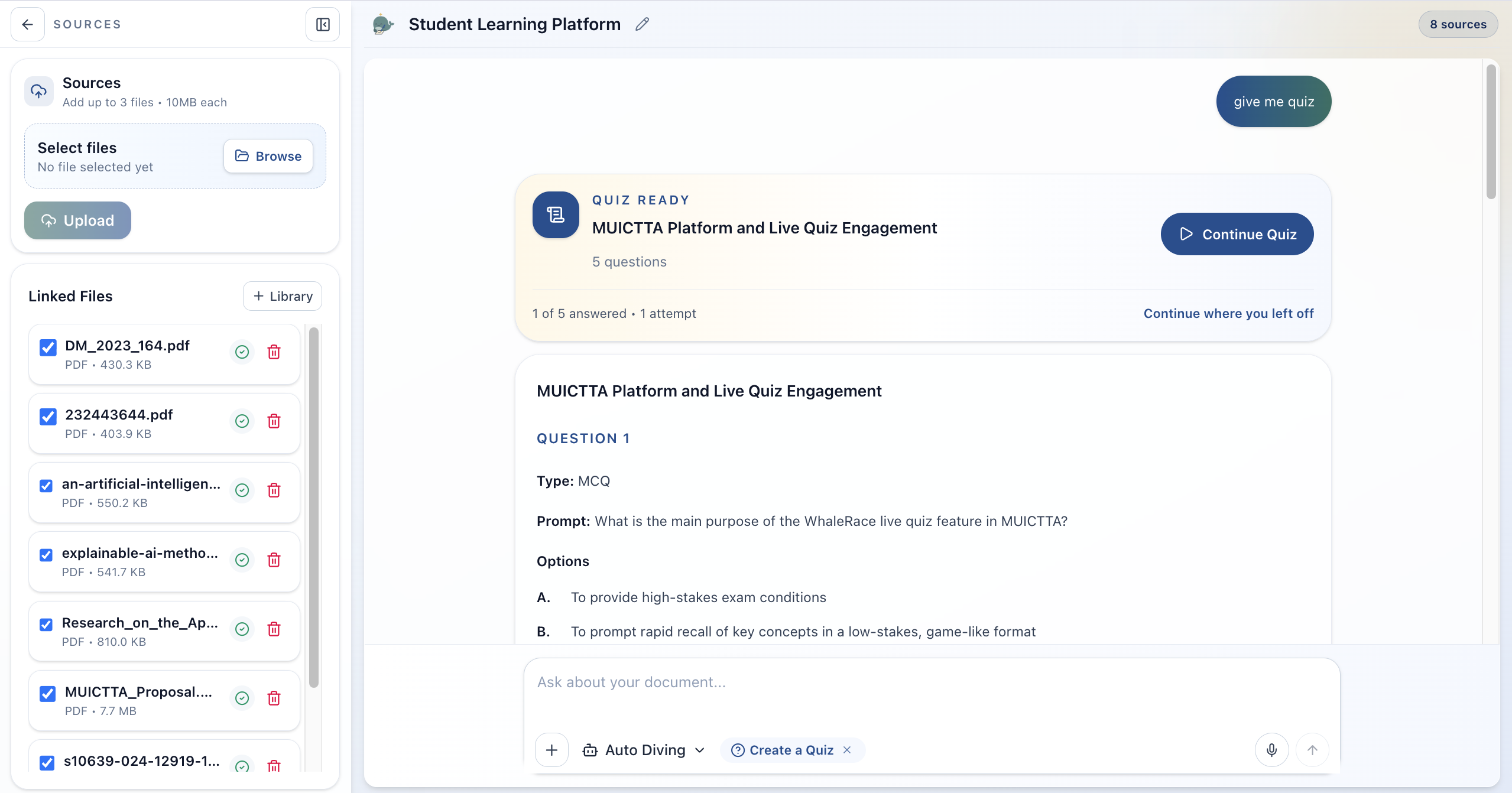
3. WhaleNotes (Source-Based Study Workspace)
WhaleNotes is a document-grounded study space. You upload sources, select which files to use, and chat with an assistant that cites your documents.
3.1 Start a WhaleNotes session
- Open WhaleNotes from your dashboard.
- Create a new session or open an existing one.
- Name the session based on the topic (you can edit the title later).
3.2 Add sources (files you want to study)
Supported file types: PDF, DOCX, TXT, MD, PPTX.
Per upload limits
- Up to 3 files per upload
- 10MB per file
After upload, files may show as processing before they become ready.
3.3 Link files from your library
If you uploaded a file before, open Library and attach it to the current session.
- Files already linked are marked as Linked.
- You can link multiple files to the same session.
3.4 Select which files to use
In the Sources panel, check the files you want the assistant to use.
- The chat input unlocks only after at least one ready file is selected.
- You can switch file focus at any time by toggling selections.
3.5 Response modes (how the assistant writes)
Use the response mode menu to control output style:
- Auto Diving: balanced detail, default mode
- Note Mode: concise study notes
- Summary Mode: high-level recap
- Coding Mode: code-first explanations
- Presentation Mode: slide-ready content
3.6 Task presets (quick study outputs)
Use the + preset menu for fast formats:
- Create Flashcards
- Explain Step-by-Step
- Create a Quiz
- Explain Assignment
Flashcards and quizzes open as interactive study tools in the chat.
3.7 Presentation mode (Deck Builder / Script Coach)
When you choose Presentation Mode, you can pick:
- Deck Builder: slide structure + content
- Script Coach: speaking notes for each slide
The deck opens in a dedicated presentation preview.
3.8 Citations (verify the source)
Every answer includes citations linking back to your uploaded files.
- Use citations to confirm accuracy.
- If you need proof, open the source list and check the referenced page.
3.9 Helpful tools inside WhaleNotes
- Copy response button for saving notes
- Regenerate to try a different explanation
- Voice input (if supported by your browser)
4. Reflection Chat (Metacognitive Review)
Reflection Chat is the guided conversation space used for weekly or post‑assessment reflection. It is built for short, structured dialogue and includes reporting and feedback capture.
4.1 Enter a reflection session
- You need a 6‑character session code from your instructor to start a new reflection.
- Click New Chat and enter the code (case‑sensitive).
- The session will appear in your sidebar once created.
4.2 Manage reflection sessions
- The left sidebar lists all reflection sessions.
- Each session shows last active time and message count.
- You can rename a session using the pencil icon in the header.
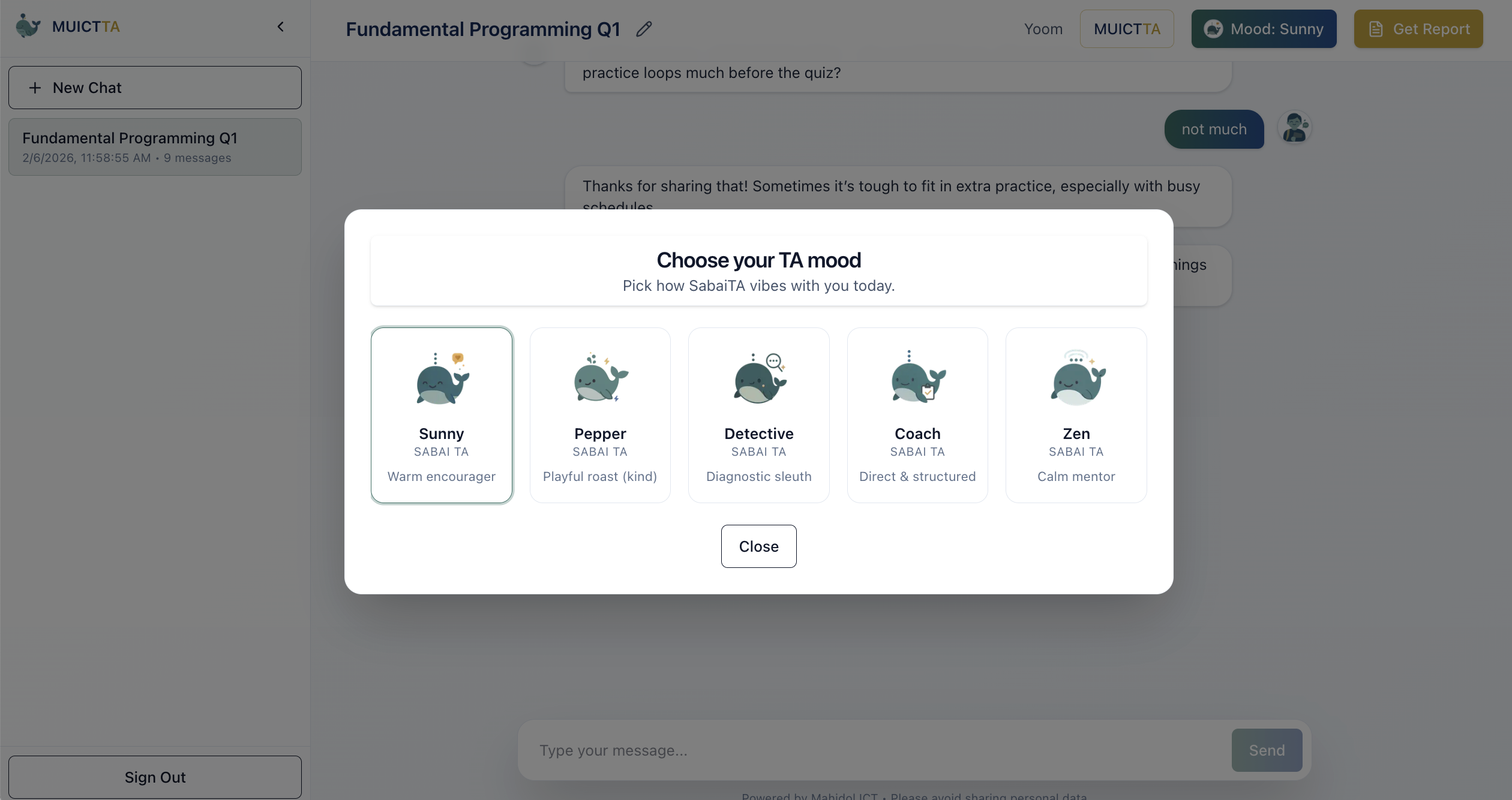
4.3 TA mood (conversation style)
You can choose the TA’s mood at any time:
- Sunny, Pepper (playful), Detective, Coach, Zen
The mood changes the assistant’s tone for the current session.
4.4 Chat flow and safety
- If a session is closed by the instructor, you can read past messages but cannot send new ones.
- The system will show a gentle warning if your message is unsafe or disrespectful.
- Please avoid sharing personal data in the chat.
4.5 Reflection report (summary + takeaway)
You can generate a reflection report from the header:
- Get Report generates or loads your report for the current session.
- Reports can be regenerated if you want a fresh version.
- Use Save as PDF to print or download.
4.6 Feedback and survey prompts
After a reflection session, you may be asked to complete a short survey:
- 1–5 ratings for satisfaction, depth, and relevance
- Short text prompts about what worked and what to improve
- A separate report helpfulness rating may appear after you close the report
4.7 Sample reflection prompts
- “What was the main mistake I kept repeating today?”
- “Which concept felt least clear and why?”
- “What should I practice before the next quiz?”
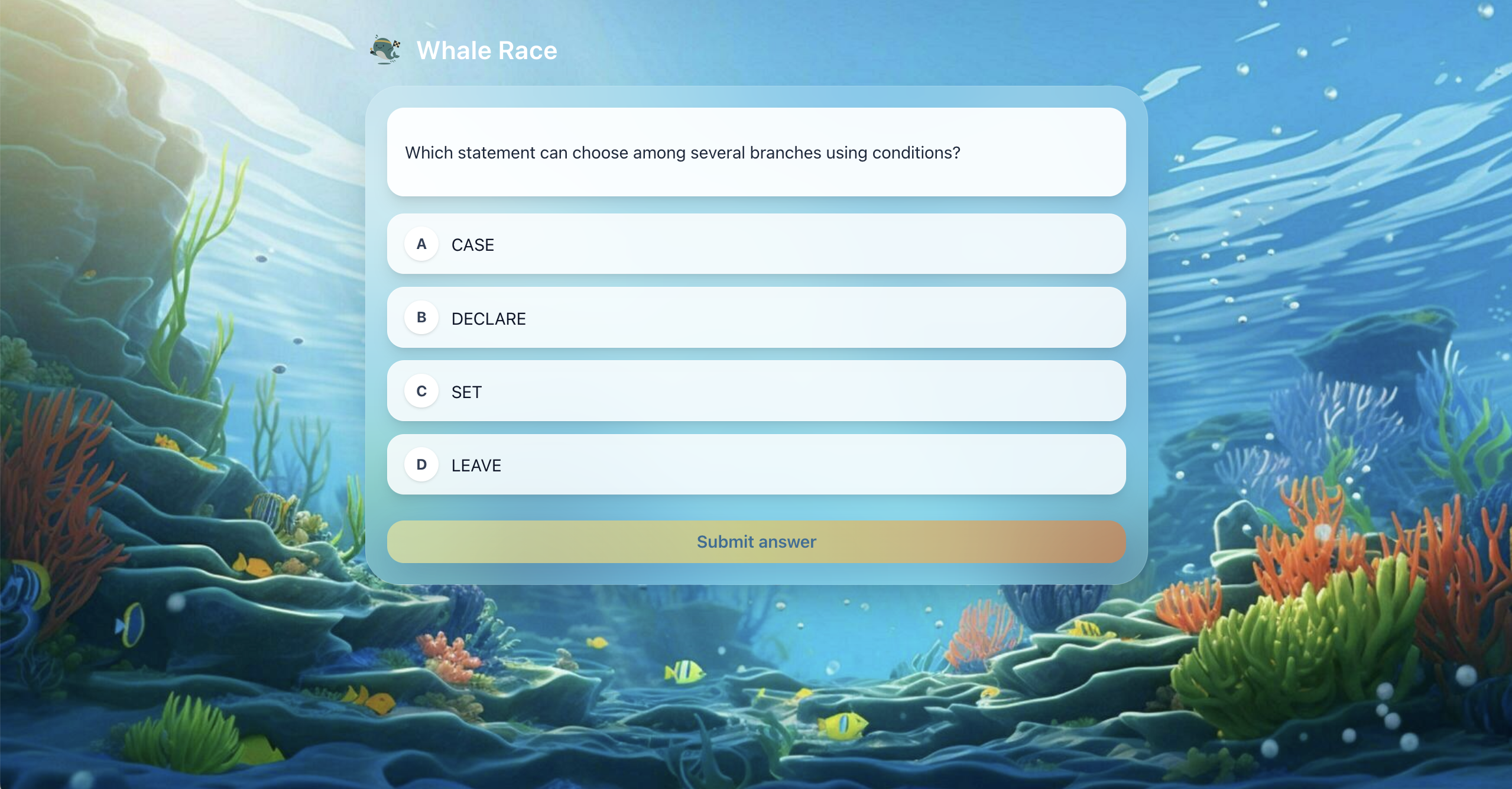
5. WhaleRace (Practice Game Mode)
WhaleRace turns practice into short, timed rounds so you can build speed and confidence.
How it works
- You answer a set of questions in sequence.
- Your progress and accuracy update live.
- You can review results at the end of a run.
Tips for best results
- Use WhaleRace for speed practice after you already learned the topic.
- Focus on consistency over perfect speed.
- Review every mistake right after the run.
Instructor & TA Guides
This section will be expanded next. Core topics include course setup, monitoring, feedback design, and academic integrity.
FAQ
How many attempts should I use?
Use 1-2 retries with feedback before switching topics.
Is AI Chat allowed during exams?
Depends on the course rules. Check with your instructor.
Why do I see different feedback than my friend?
Feedback adapts to your answer and error pattern.
Glossary
| Term | Meaning |
|---|---|
| Attempt | One submitted answer for a question |
| Retry | A follow-up attempt after feedback |
| Weak topic | A topic with repeated errors or low accuracy |
| Progress report | Summary of performance and trends |